User Guide
How to Use M AUTO
This page explains only the practical workflow: connect devices, configure profiles, add cookies, add scripts, and run your farm reliably.
Before You Start
- Install and open your emulator instances (MuMu, LDPlayer, BlueStacks, or any ADB-compatible emulator).
- Enable root permission in all emulators before connecting devices.
- If you use LDPlayer, enable USB/ADB debugging in emulator settings.
- Set every emulator resolution to 1600x900 before starting.
- Launch M AUTO and open the dashboard in your browser.
- Start with 1-2 instances first, then scale once everything is stable.
Tip: Use dedicated farming accounts and keep your main account separate.
1) Connect Your Devices
- Open M AUTO dashboard and go to the device area.
- Click Refresh Devices.
- Confirm each emulator appears as online before continuing.
If a device is missing
- Check emulator is running.
- Restart emulator and refresh again.
Good practice
- Keep device names organized.
- Avoid changing emulator ports during active sessions.
- Verify all target devices are selected before running actions.
2) Configure Auto Rejoin Profile
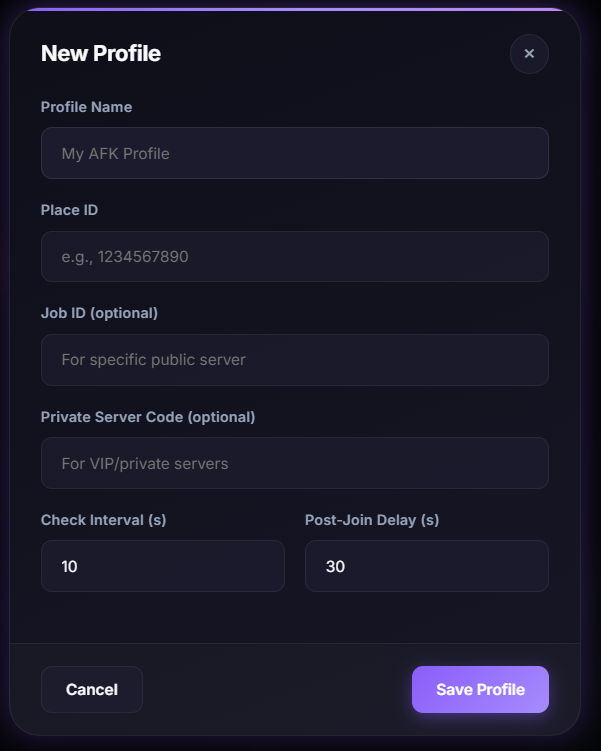
Profiles let you save your game settings once and reuse them anytime.
Required field
- Place ID: the Roblox game ID you want to join.
Optional fields
- Job ID: rejoin the same public server.
- Private Code: join private/VIP server.
- Check Interval: how often M AUTO checks app state.
- Post-Join Delay: wait before monitoring again after joining.
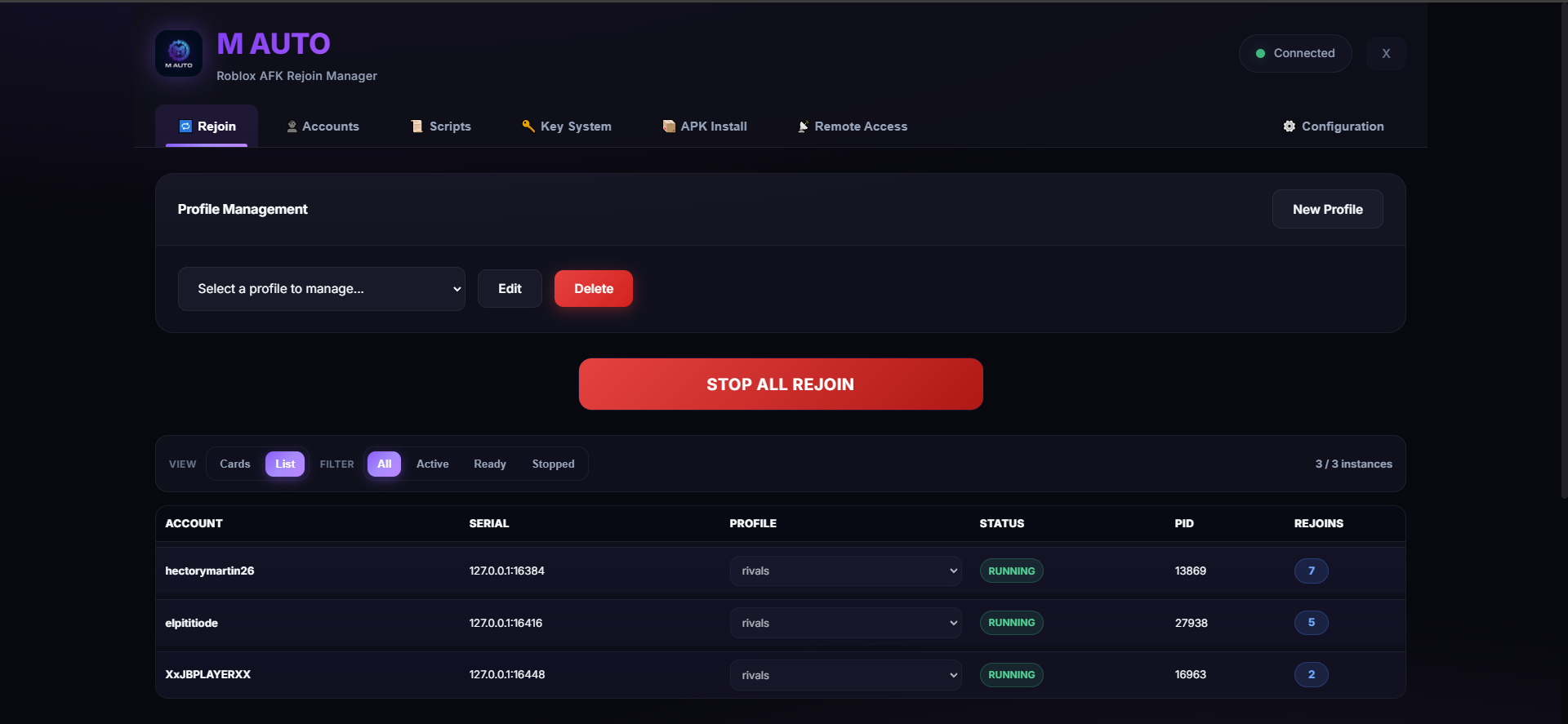
- Go to Auto Rejoin tab.
- Fill profile fields.
- Click Save Profile.
- Select this profile whenever you start monitoring.
3) Add Cookies and Login Accounts
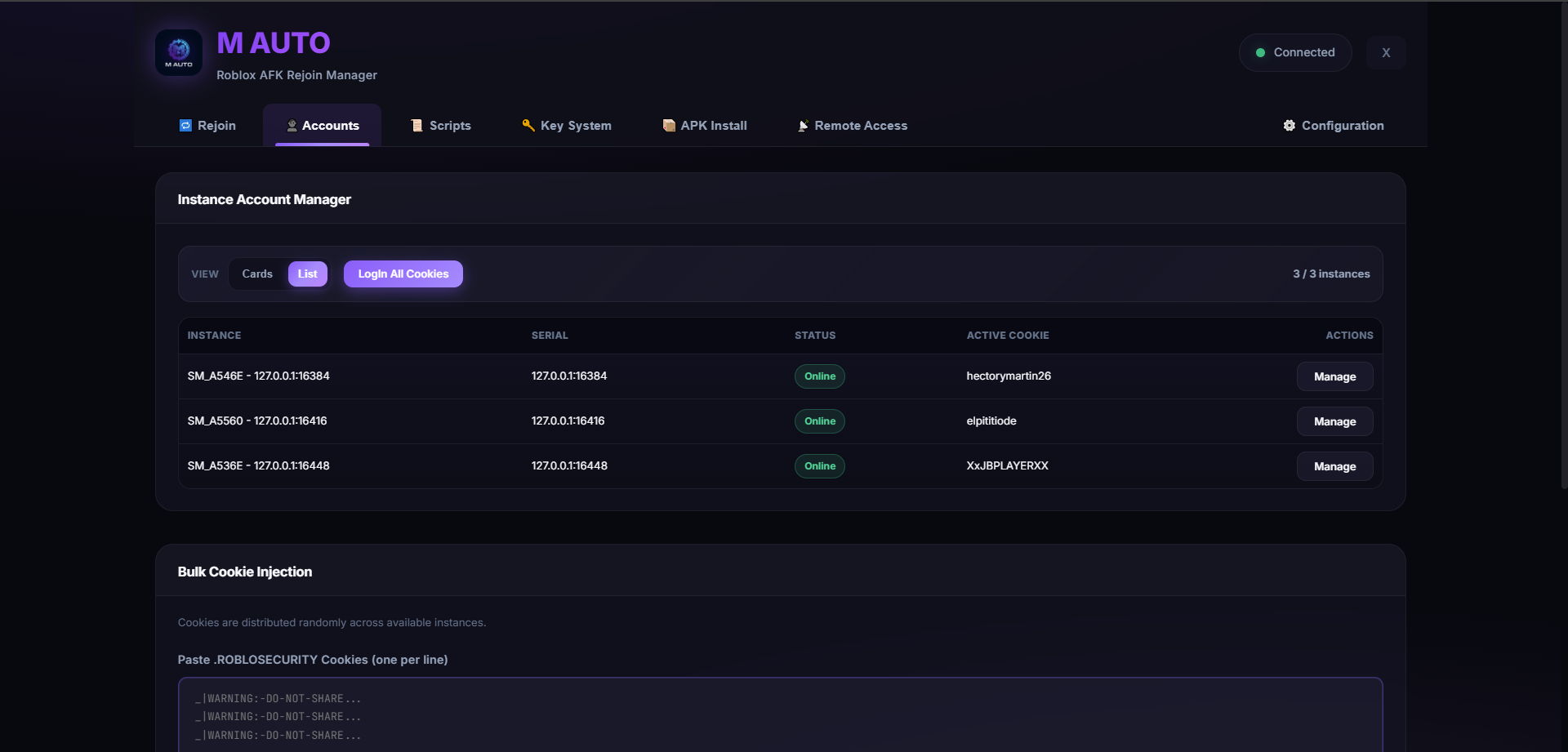
- Go to the Accounts tab.
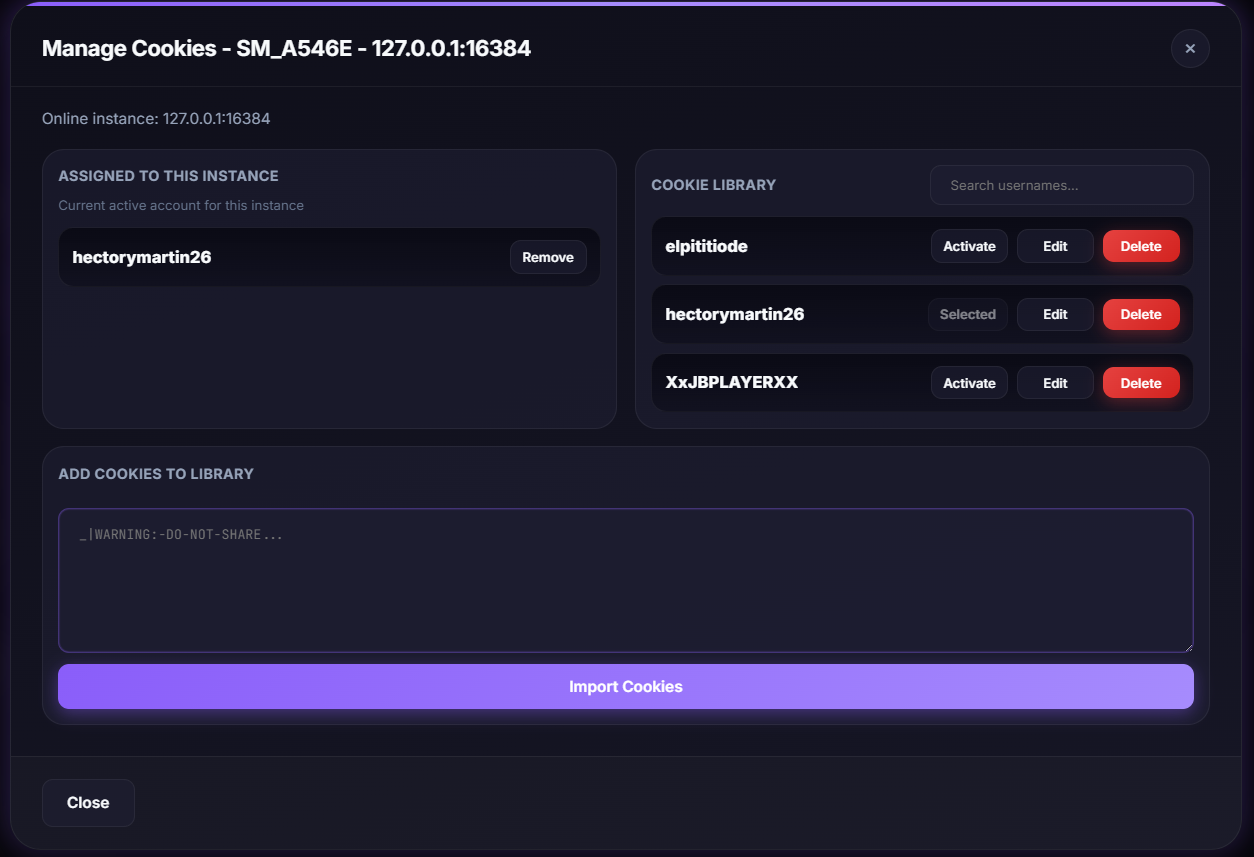
- Add/import your cookies into the cookie library.
- Assign one active cookie to each instance.
- Run login for active cookies and wait for completion.
What to verify
- Each instance has exactly one active cookie.
- Usernames are shown correctly after login.
- No failed login entries remain in logs.
Common mistakes
- Using expired/invalid cookies.
- Forgetting to activate a cookie per instance.
- Running monitor before account login is confirmed.
Security: treat `.ROBLOSECURITY` as sensitive account access data. Never share it.
4) Add and Assign Scripts
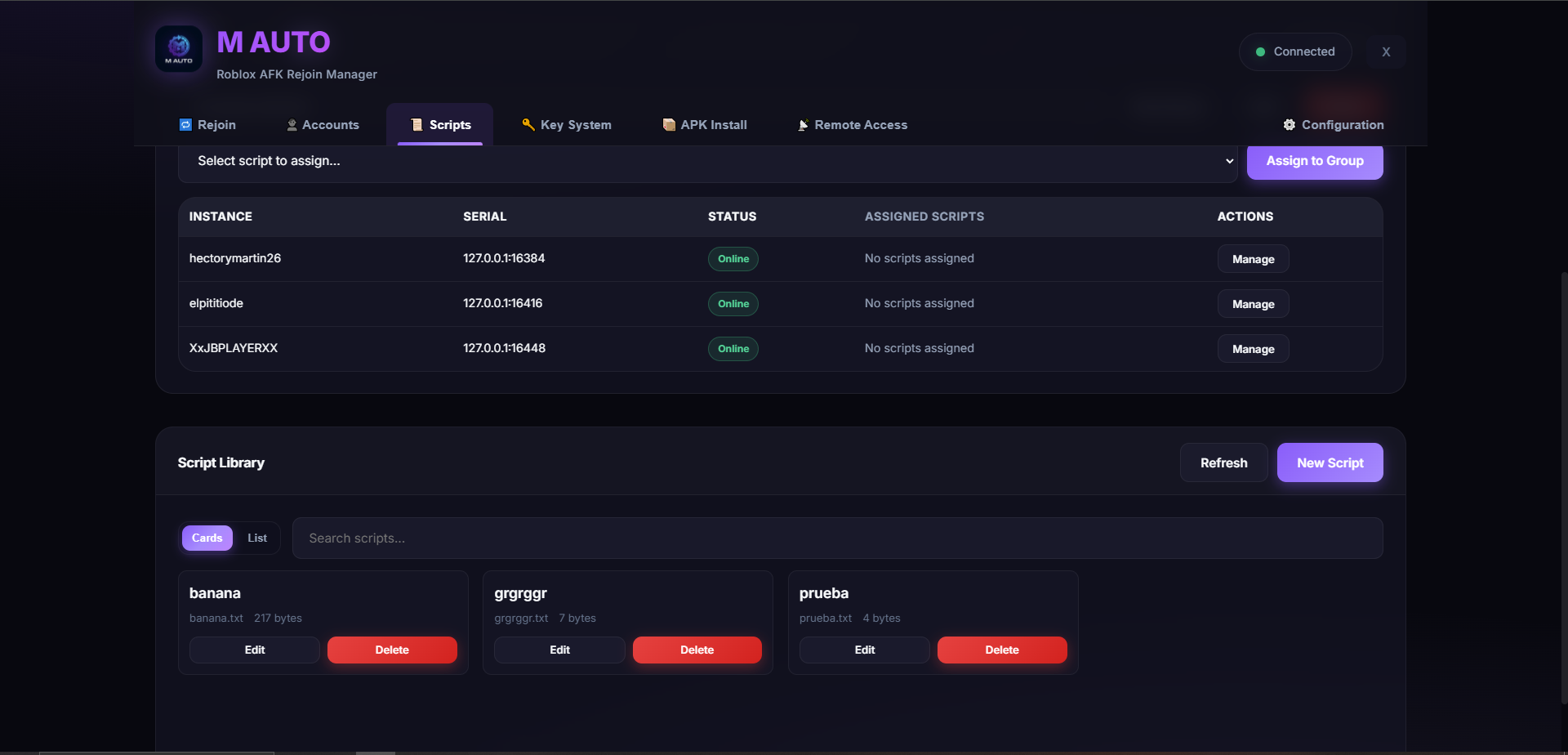
- Open Scripts tab and set your autoexecute folder path.
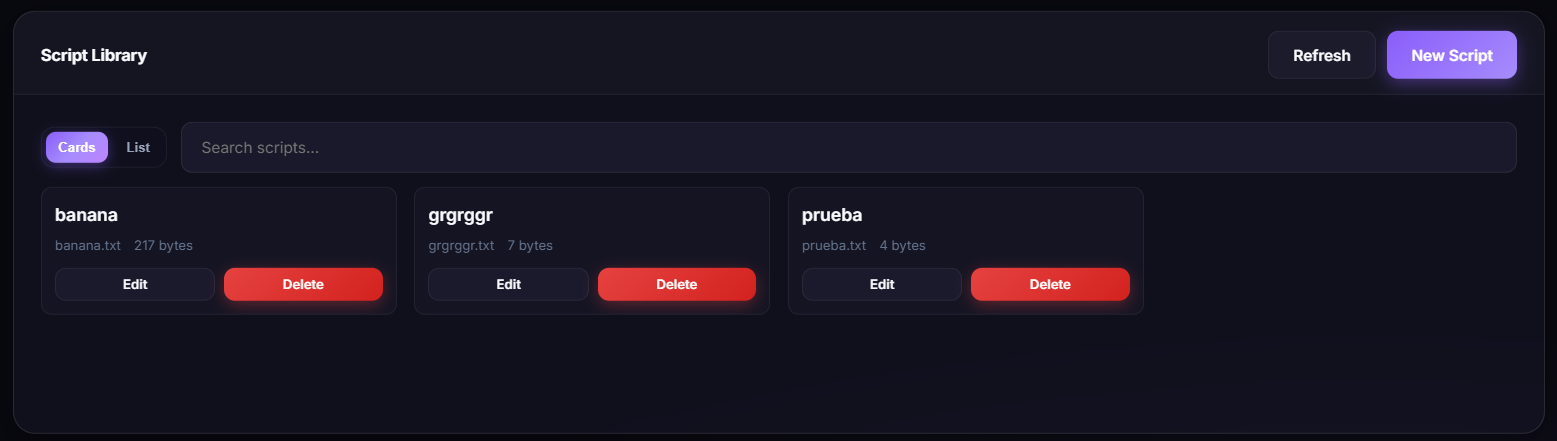
- Add scripts to library (create new or import existing files).
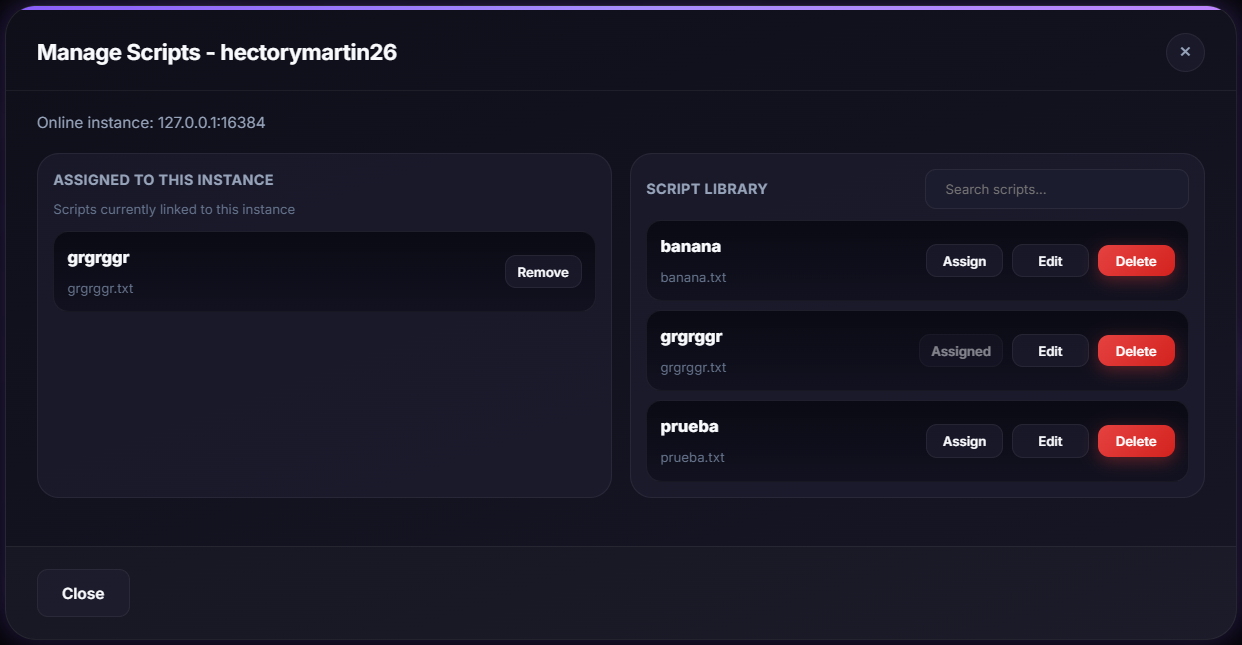
- Assign scripts to individual instances or to groups.
- Refresh/sync and verify assignments are visible before running.
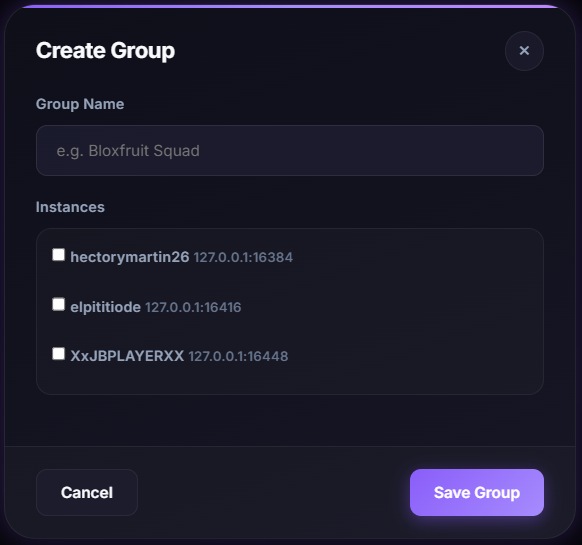
Use groups when scaling
- Create groups by game/profile type.
- Assign once per group instead of device by device.
Maintenance tips
- Use clear script names and versions.
- Delete old duplicates to avoid wrong assignment.
- Re-check assignment after major emulator changes.
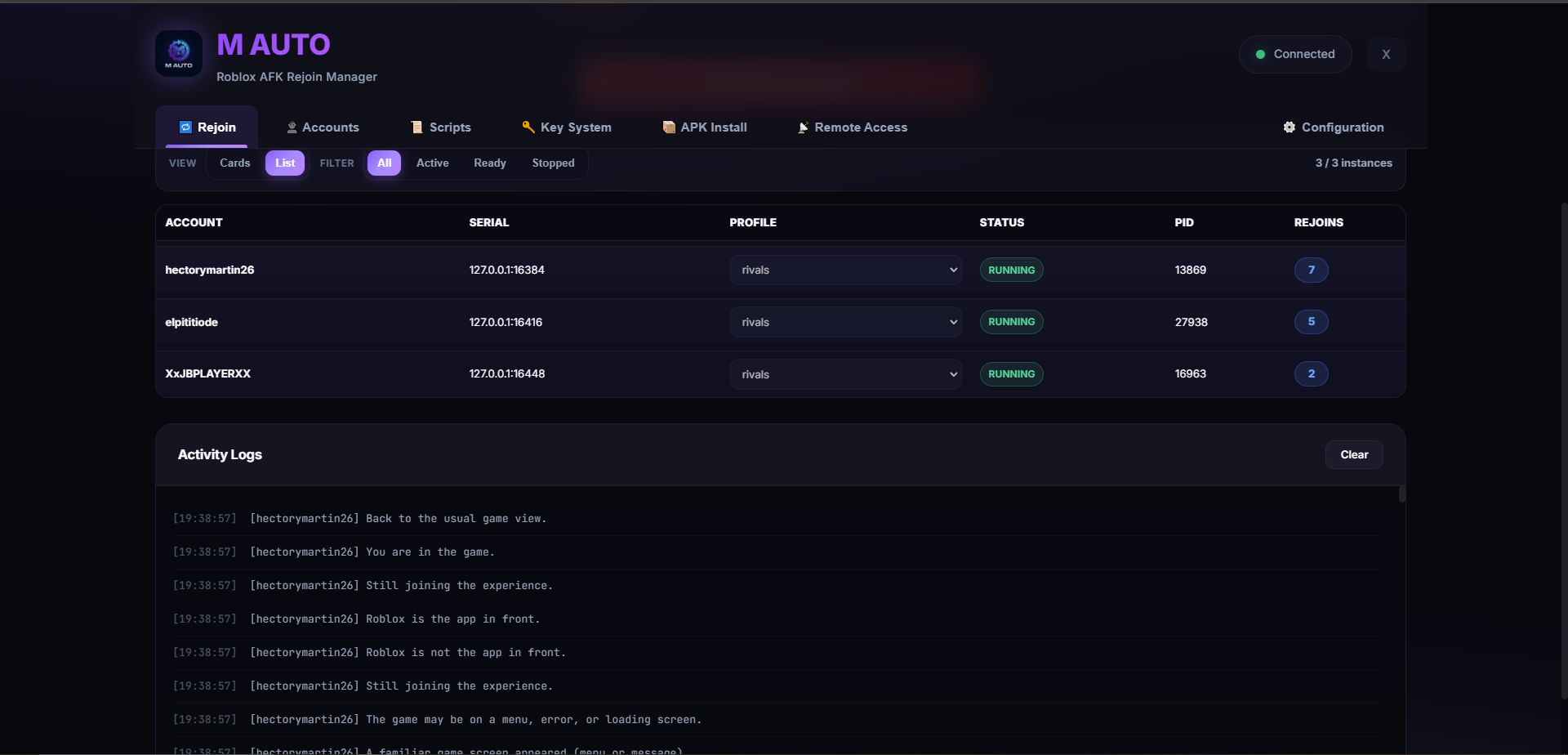
5) Start Monitoring and Keep It Healthy
- Select target instances.
- Select your saved profile.
- Click Start Monitoring.
- Watch status and logs for the first minutes.
- Use Force Rejoin only for devices that stay stuck.
Daily check routine
- Review logs regularly.
- Confirm instance count matches your expected total.
- Export logs after incidents for troubleshooting.
Optional tools
- APK Install: update all devices together.
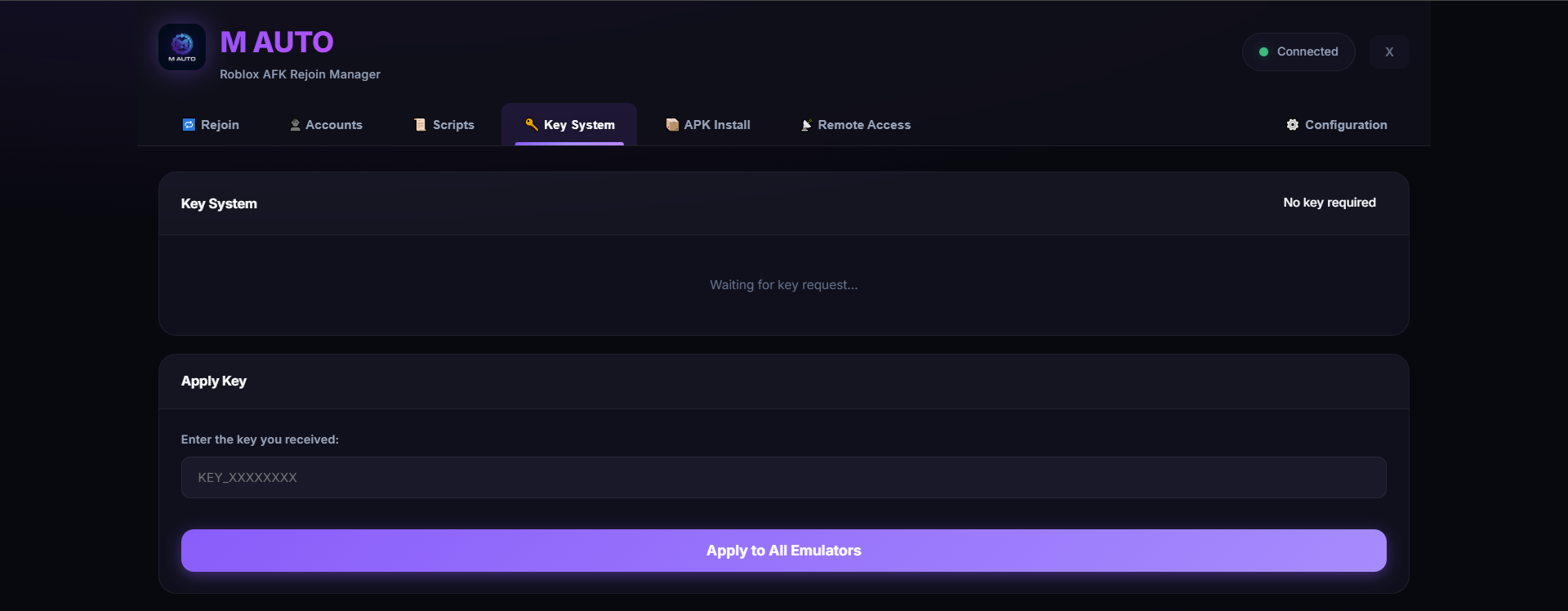
- Key System: apply key once for all devices.
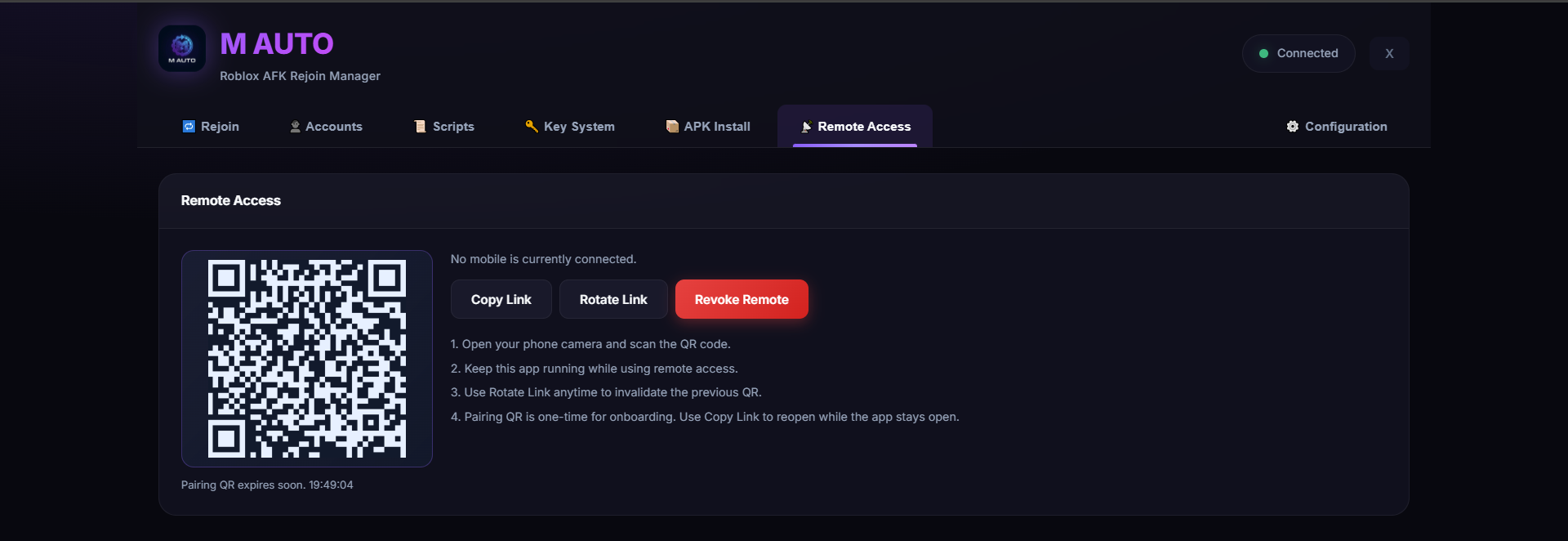
- Remote Access: manage from phone and revoke when done.
6) Remote Access (Optional)
- Open the Remote Access tab.
- Pair your phone using the on-screen method.
- Open the remote link and test controls.
- Rotate or revoke access when you finish.
Use remote access only on trusted networks/devices.
Quick Troubleshooting
Devices not showing
- Restart emulator and refresh devices.
- Check ADB connection/ports and retry.
Cookies not logging in
- Replace invalid cookies.
- Re-assign active cookie and retry.
Scripts not applying
- Verify autoexecute path.
- Check instance/group assignment again.
Too many rejoin failures
- Recheck profile values (Place ID, Job ID, private code).
- Use logs to find repeated failure patterns.
Need setup help?
Join Discord and we can help you configure your first stable workflow.